Names & Nicknames
Invisible characters can make a display name look blank or create a gap in a nickname. Use them for a minimal name without visible letters or for a different style of spacing.


Copy and paste blank spaces for usernames, bios and messages. Generate the blank text you need, then check that it copied with the built-in paste test.
Browse common Unicode characters for blank text and spacing. Compare their uses and copy the character you need.
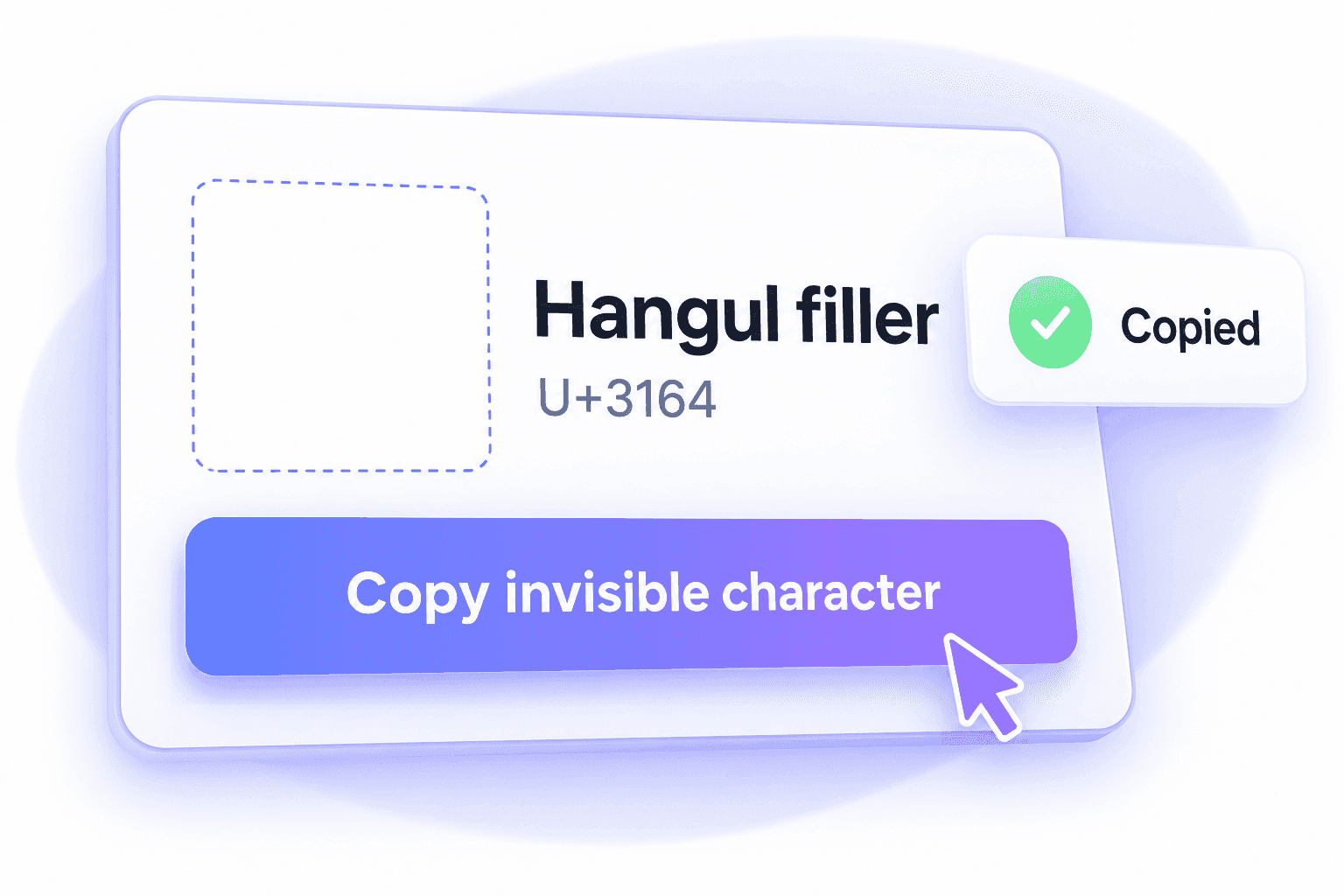
Copy a blank space or empty character in one click. Choose from 20 Unicode options, with clear names and short explanations to help you find the right one.
Try Hangul filler for a blank-looking character, or choose a different space from the table. Each Copy button gives you one character, ready to paste.
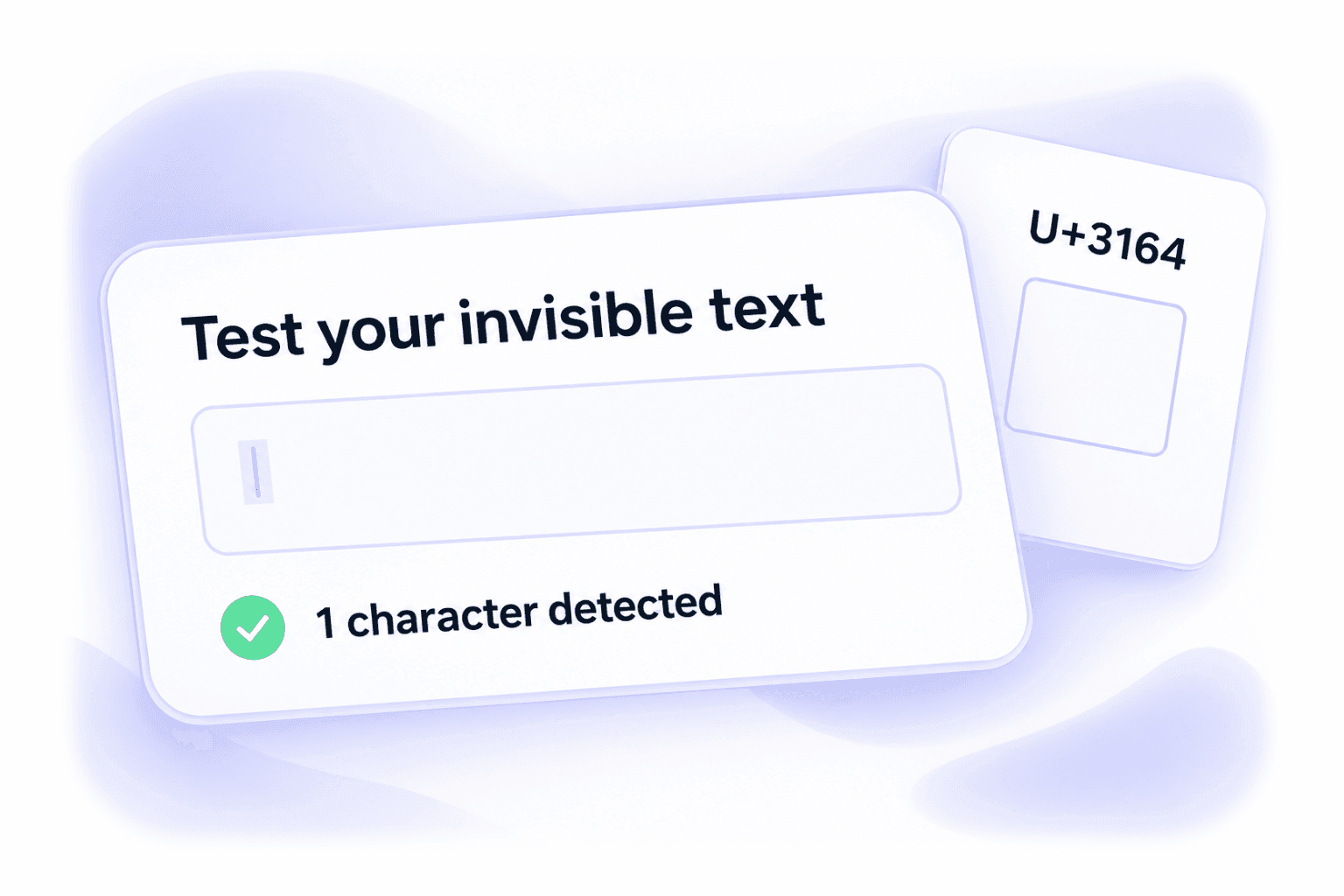
The built-in paste test confirms whether your text contains a blank or invisible character. See a character count even when the field looks empty, so you know whether the copy worked.
Clear feedback helps you catch an empty paste before you edit a username, format a bio or prepare a message.
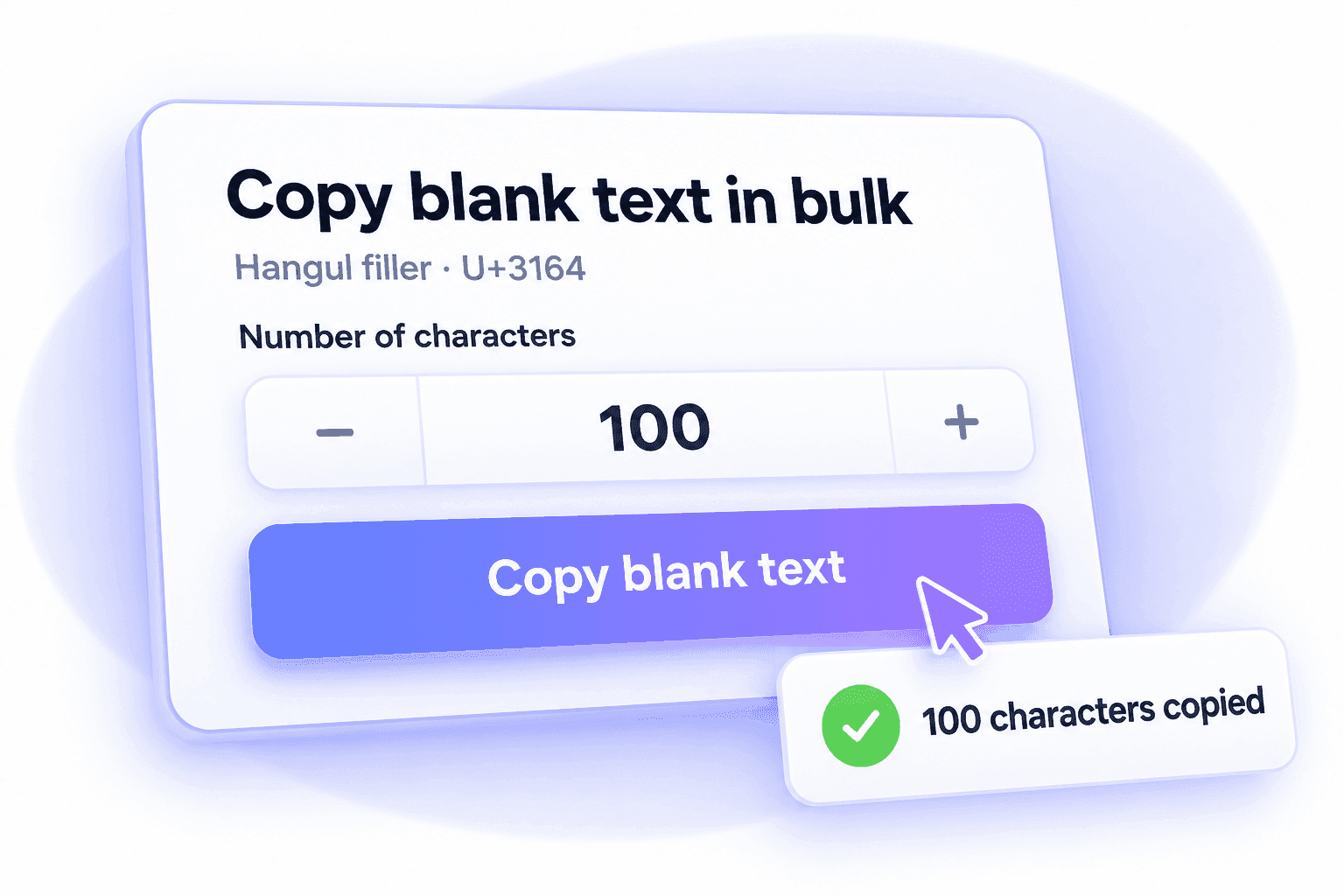
Copy multiple blank characters at once instead of pasting the same character again and again.
Set a quantity from 1 to 1,000 in the invisible text generator. The tool copies that many Hangul fillers together, ready to paste into your message or layout.
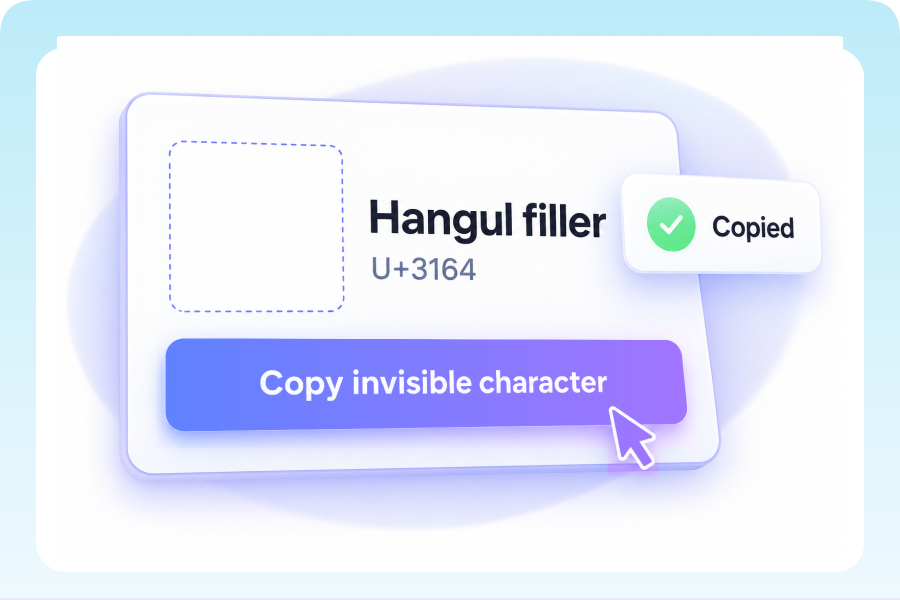
Click the main button, or choose an alternative from the character list.
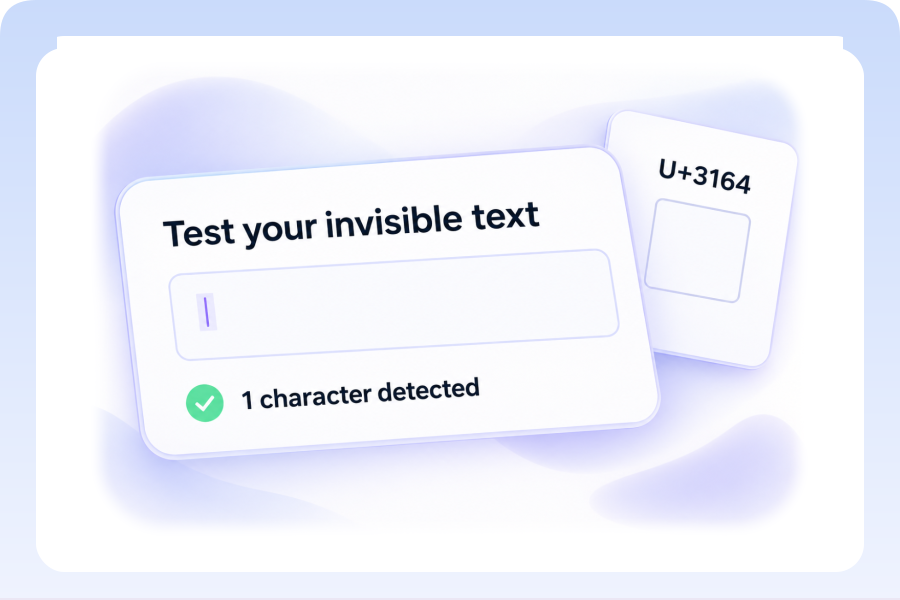
Paste into the test box to confirm that your blank character is there.
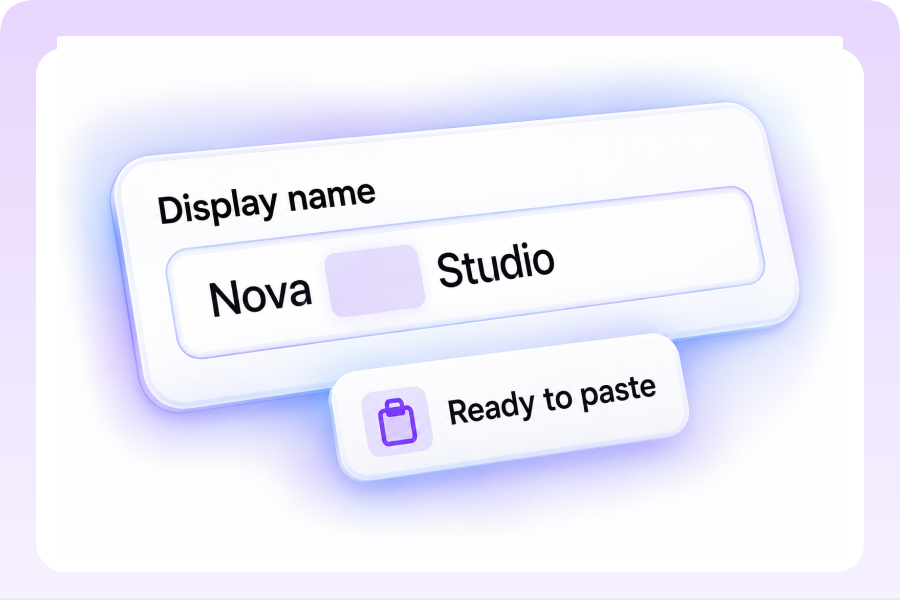
Paste into a username, bio or message field, then check the result in that app.
Invisible characters have everyday uses in names, messages and social profiles. Support varies by app and field.
Invisible characters can make a display name look blank or create a gap in a nickname. Use them for a minimal name without visible letters or for a different style of spacing.

Send an empty-looking message to friends or add spacing to a short message. The text still contains a real character, even when no letters appear.

Use invisible text to add spacing to a bio, separate caption sections or leave a highlight label blank. These small changes can give your profile a cleaner layout.

Add a space between parts of a game name, nickname or clan tag. Invisible characters can also create an empty-looking player name in games that allow it.

Leave a comment or reply that appears empty. A blank character gives you a way to respond without adding visible words or an emoji.

Use blank text for an empty-looking status or About line. Keep the field visually simple without adding a quote, emoji or other visible text.
Copy, generate and test blank text in one place. Find the right character without a complicated setup.

Copy blank text, explore all 20 Unicode options and use the paste test for free. No paid subscription needed.

Start copying invisible text without creating an account. The generator, character table and paste test are ready to use.

Use the tool in your browser on a computer, phone or tablet. There is no app, extension or software to install.

Check that your blank text is really there. The test shows the total character count and how many characters are blank or invisible.

Choose from 20 Unicode characters, including Hangul filler, Braille blank and zero-width space. Find an alternative for your name, message or text layout.

Copy with one click, or select the character and copy it manually when automatic copying is unavailable. Both options give you the same blank text.

Compare character names, Unicode codes, HTML entities and examples. Short usage notes help you choose a blank space for your task.
An invisible character is a Unicode character that looks blank or has no visible mark. It can still be copied, pasted and counted. Blank text may contain one or more of these characters, even when it looks empty.
Try Hangul filler (U+3164) first, or Braille pattern blank (U+2800) as an alternative. For spacing between words, choose a regular, narrow or wide space from the list. Each app decides which characters it accepts.
Click Copy invisible character, then paste with Ctrl+V on Windows or Command+V on Mac. The main button copies the number of Hangul fillers you select; each row copies one of its named characters. If automatic copying is unavailable, use the manual copy field.
Some platforms trim spaces or remove certain Unicode characters. Try an alternative and check the exact username, bio or message field where you want to use it. The test on this page confirms that a character is present; it does not determine whether another app accepts it.
A zero-width space (U+200B) adds no visible gap and allows a line break. Other empty characters, such as Hangul filler and Braille pattern blank, usually occupy space. You can copy both types from the character list.
Yes. Tap the copy button, then press and hold the destination field and choose Paste. You can use the built-in test box on mobile too. Browser and app clipboard behavior can vary.
Yes. No account or payment is needed. Copying writes only your chosen character; the tool does not read your existing clipboard, upload your test text or save your inputs.
Yes. Set the number of characters in the invisible text generator, then click Copy invisible character. You can copy 1 to 1,000 Hangul fillers at a time. Each Copy button in the character list copies one character.